
Visualize XSD Schemas Across Multiple Files
Aykut Saraç
• March 15, 2026
XML Schemas get complex fast. One file defines your Order, another defines Customer, a third handles Product. They all reference each other, but you're stuck reading raw .xsd files, mentally stitching together type hierarchies across tabs.
It's tedious. It's error-prone. And it doesn't have to be this way.
With XSD Linking in ToDiagram, you can now import multiple .xsd files, link them together, and instantly see a unified diagram with cross-file type relationships rendered as edges.
The Problem with Multi-File Schemas
Real-world XSD schemas are rarely self-contained. A typical project might look like:
order.xsddefines the order structure, referencesCustomerandProductcustomer.xsddefinesCustomerandAddresstypesproduct.xsddefines theProducttype
These files use xs:import or namespace-qualified references to connect types across boundaries. Understanding the full picture means jumping between files, tracing type="cust:Customer" references manually.
How XSD Linking Works
- Drag and drop your
.xsdfiles into ToDiagram - Right-click a secondary schema tab and select Link to {primary tab}
- The primary tab renders a unified diagram with all types, all relationships, in one view
That's it. No configuration. No manual mapping.
What You Get
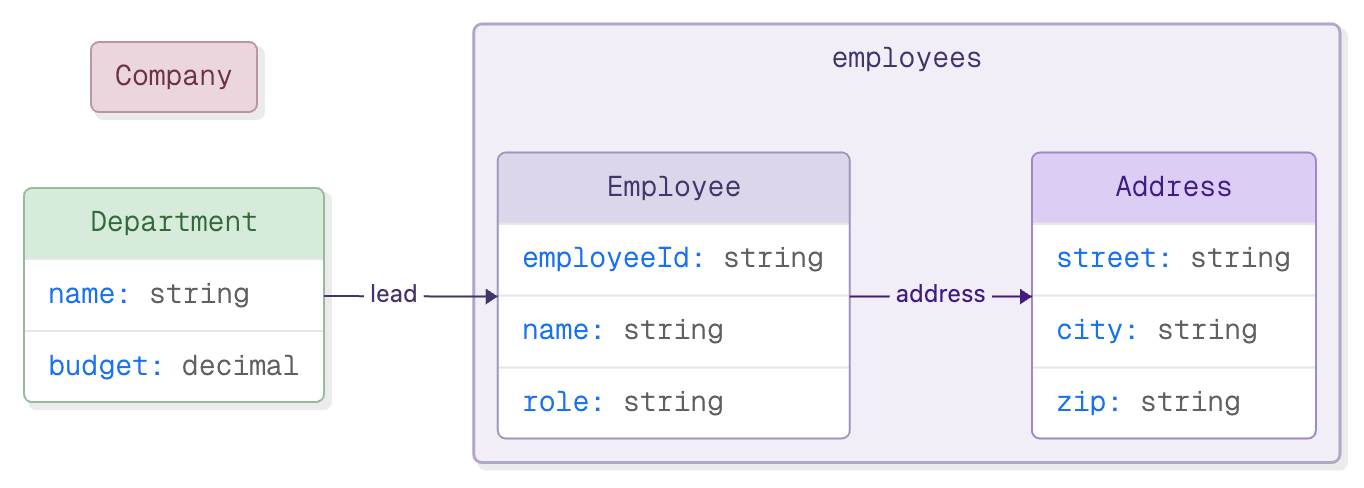
When you link XSD files, ToDiagram:
- Resolves cross-file type references like
Order → CustomerandOrderLine → Product - Groups types by source file so each file becomes a visual container
- Renders edges for relationships including inheritance (
extends), composition, and element references - Shows attributes and elements as key-value rows inside each type node
Example
A company schema split across two files:
company.xsd (primary)
<xs:schema xmlns:xs="http://www.w3.org/2001/XMLSchema">
  <xs:element name="Company">
    <xs:complexType>
      <xs:sequence>
        <xs:element name="name" type="xs:string"/>
        <xs:element name="founded" type="xs:date"/>
        <xs:element name="department" type="Department"/>
      </xs:sequence>
    </xs:complexType>
  </xs:element>

  <xs:complexType name="Department">
    <xs:sequence>
      <xs:element name="name" type="xs:string"/>
      <xs:element name="budget" type="xs:decimal"/>
      <xs:element name="lead" type="Employee"/>
    </xs:sequence>
  </xs:complexType>
</xs:schema>
employees.xsd (linked)
<xs:schema xmlns:xs="http://www.w3.org/2001/XMLSchema">
  <xs:complexType name="Employee">
    <xs:sequence>
      <xs:element name="employeeId" type="xs:string"/>
      <xs:element name="name" type="xs:string"/>
      <xs:element name="role" type="xs:string"/>
      <xs:element name="address" type="Address"/>
    </xs:sequence>
  </xs:complexType>

  <xs:complexType name="Address">
    <xs:sequence>
      <xs:element name="street" type="xs:string"/>
      <xs:element name="city" type="xs:string"/>
      <xs:element name="zip" type="xs:string"/>
    </xs:sequence>
  </xs:complexType>
</xs:schema>
Link employees.xsd to company.xsd and you get this:
Tab Grouping
Linked tabs are visually grouped in the tab bar with a shared color. The primary tab keeps its format label, while linked tabs show a chain icon. Different link groups get different colors, so you can manage multiple schema sets at once.
Try It Yourself
Drop your .xsd files into ToDiagram and link them together. See your entire schema in one diagram.