

Managing Your Subscription
View plans, download invoices, update payment details, change billing cycle, and cancel or resume your ToDiagram subscription.
Everything you need to do with your ToDiagram subscription lives in one place: the Billing tab in your account settings. This guide walks through each action you can take there.
Opening the Billing Tab
- Click your profile icon in the top-right corner
- Select Account from the dropdown
- Open the Billing tab
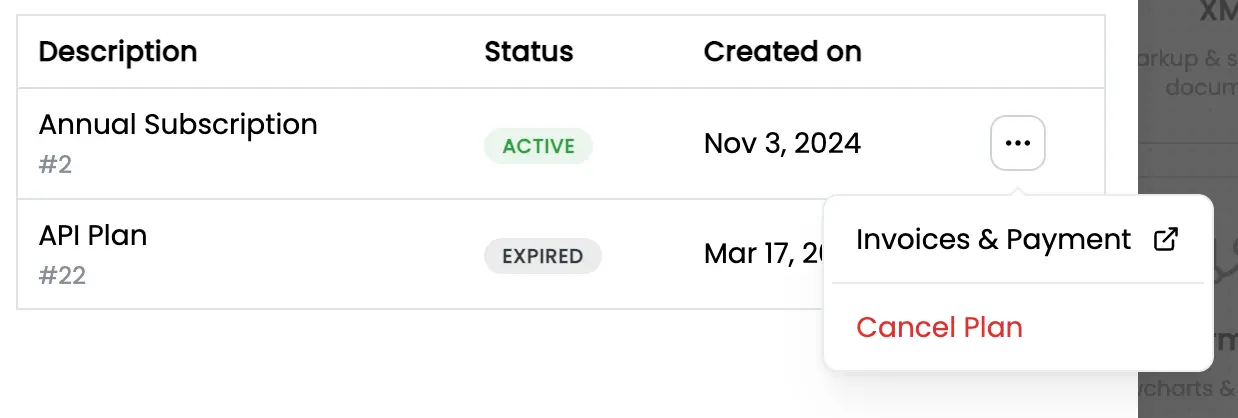
You'll see your current plan, any past subscriptions, and a three-dot menu (⋮) next to each one that contains the actions described below.
What You Can Do
View Your Plan and History
The Billing tab lists your current subscription along with any previous ones (expired, cancelled, or switched). For each subscription you can see:
- The plan name (Pro, Team, Lifetime, API, etc.)
- Status (active, cancelled, unpaid, expired)
- Renewal or expiry date
- Billing cycle (monthly or annual)
Generate and Download Invoices
Every payment creates an invoice you can download as a PDF for your records or for expense reports.
- In the Billing tab, click the three-dot menu (⋮) next to your subscription
- Select Invoices & Payment
- A secure customer portal opens in a new tab
- From there you can view, download, or print any invoice from your billing history
The customer portal is hosted by our payment provider (Lemon Squeezy or Paddle, depending on when you subscribed). Both offer the same invoice, payment, and billing history features.
Update Your Payment Method
If your card is expiring or you want to switch cards:
- Open the three-dot menu (⋮) next to your subscription
- Select Invoices & Payment
- Update your payment details in the customer portal
If a recent payment failed, your subscription status will show as Unpaid and a Fix Payment button will appear in the Billing tab. Clicking it takes you straight to the customer portal to update your card and retry the charge.
Change Billing Cycle (Monthly ↔ Annual)
Switching between monthly and annual billing is done from the same menu:
- Open the three-dot menu (⋮) next to your subscription
- Select Change Plan
- Choose the new billing cycle
The change applies immediately, and you'll be charged or credited a prorated amount for the remainder of the current period.
Update Team Seats
Team owners can adjust the number of seats on their plan at any time:
- Open your Account settings
- Go to the Team tab
- Click Update Seats
- Enter the new seat count and, optionally, toggle between monthly and annual billing
Seat changes are prorated and applied immediately. The minimum seat count is the number of members currently in the team — remove members first if you need to go lower.
Cancel Your Subscription
You can cancel at any time. Your access continues until the end of the current billing period, so you won't lose anything you've already paid for.
- Open the three-dot menu (⋮) next to your subscription
- Select Cancel Plan
- Choose a reason and (optionally) share more detail — this genuinely helps us improve
- Review what you'll lose access to and confirm
For team plans, only the team owner can cancel. All members keep access until the billing period ends.
If you're on a discounted or promotional rate, cancelling means you lose that rate permanently. Re-subscribing later will be at the current standard pricing.
What you lose when the billing period ends
- Access to premium features (high-resolution export, no file limit)
- Cloud-stored documents are kept for 14 days after access ends, then deleted
- Team members lose access to team-only features
Resume a Cancelled Subscription
Changed your mind? As long as the billing period hasn't ended yet, you can resume:
- Go to the Billing tab
- Find the cancelled subscription and click Resume Plan
Your subscription continues as if you never cancelled, at the same rate. Once the billing period has fully ended, you'll need to subscribe again at the current price.
Special Cases
GitHub Student Developer Pack
Subscriptions activated through the GitHub Student Developer Pack can't be modified or cancelled from the app. If you need to make changes, contact support.
Manual or Enterprise Plans
Custom enterprise agreements are marked as "manual" and aren't managed through the Billing tab. Please email [email protected] for any changes.
Need Help?
If something in the Billing tab isn't working as expected, or you have a question that isn't covered here:
- Email: [email protected]
- Response time: usually within 24–48 hours